How to Use Clipart: PNG vs SVG, Print Size and Licenses
To use clipart from a download, place the PNG on your page with its proportions locked, size it by the drawing you can see rather than the box around it, and print one test copy before you make the rest. Open the SVG instead when you want to change the drawing itself.
Sizing is where people get caught out.
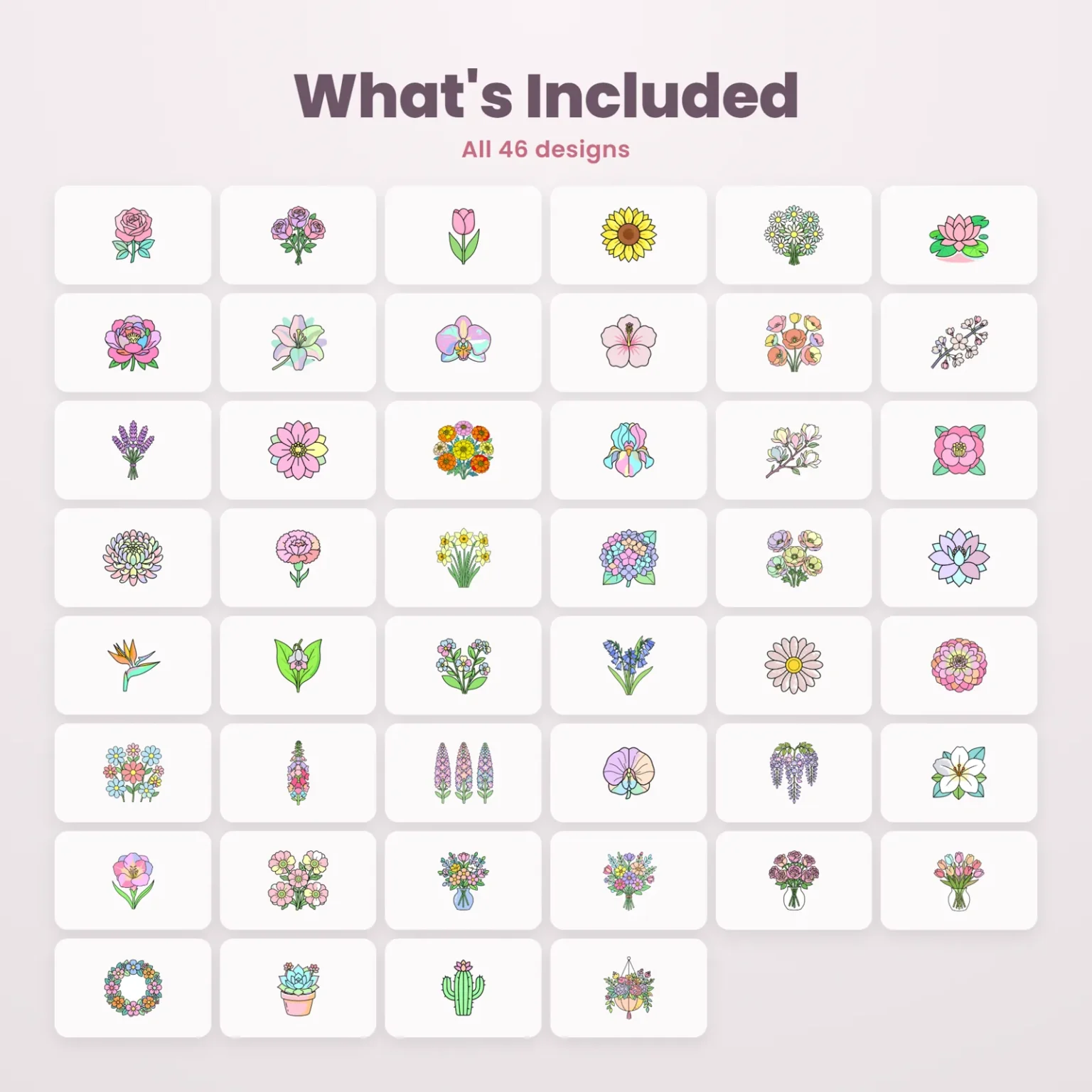
Take the rose from our Pastel Floral Clipart: its file is a 2400-pixel square, but the flower inside is only 1443 pixels wide. Set that square to 2 inches (5.1 cm) and you get a rose 1.2 inches (3.1 cm) across.
Before anything you make leaves the house, check the license PDF that sits in the same ZIP.
What’s inside a clipart download: PNG, SVG and a license PDF
Open the ZIP for our floral, animal or zodiac clipart and you’ll see the same layout: a PNG folder, an SVG folder and one PDF.
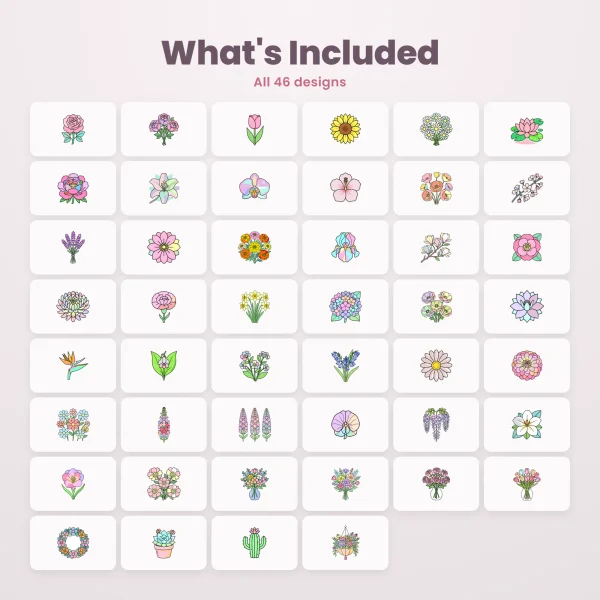
The Pastel Floral download holds 46 PNGs, 46 SVGs and the license, about 15 MB in all.
The names do the sorting, so the rose PNG and the rose SVG share a name and sit at the top of their folders.
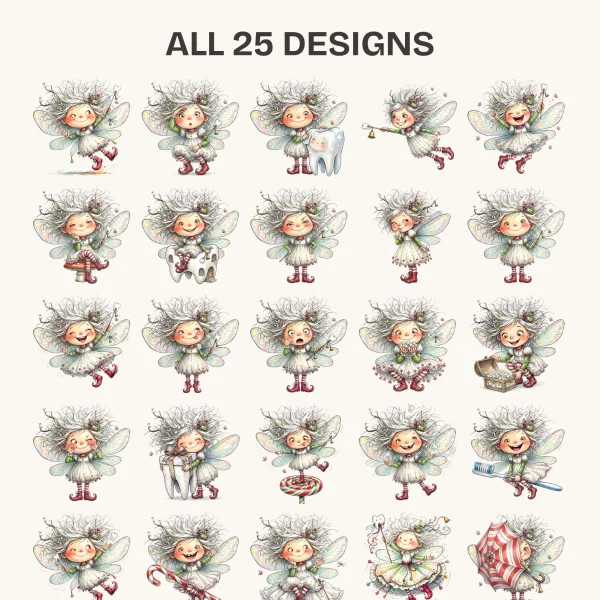
The three fairy sets work differently: they’re PNG only, with no SVG folder. Their files carry numbers instead of names, so you’ll have to open them to see which fairy is which.
They’re heavy, too. The tooth fairy ZIP alone is about 98 MB.
Work from these files, not from the pictures on the product pages in our clipart shop, which are 2000-pixel layouts with titles printed on them.
The PDF is named for the tier you bought: Doodlora-Studio-Personal-License.pdf or Doodlora-Studio-Commercial-License.pdf. What each one allows is the last section of this guide.
Your download link works for 30 days and up to five downloads, so save the ZIP somewhere you’ll find it again. Opening it takes different steps on Windows, Mac, iPhone and Android, and our download and unzip page gives each one.
PNG or SVG clipart: which file to use for each job
Start with the PNG for anything you’re placing on a page.
Each PNG in the floral, animal and zodiac sets is 2400 by 2400 pixels with a transparent background.
It’ll drop onto a card, a label or a worksheet without a white square behind it, and Word, Google Docs and Canva all take it as an ordinary picture.
That makes a PNG the quickest way to add a step that a printed routine set leaves out. In our visual schedule guide, that homemade card is cut to the same size as the printed ones, with the word printed under the picture.
The SVG is the file to open when you want to change the drawing itself.
Our SVGs are traced, not drawn line by line.
The rose is 35 filled shapes with no photo tucked inside, and across the 46 flowers the count runs from 16 shapes to 229.
How the black lines are built surprises most people.
In 43 of the 46 floral SVGs, the bottom shape is a solid dark silhouette of the whole design.
The colored shapes sit on top of it with thin gaps between them, and the black you read as outlines is that silhouette showing through.
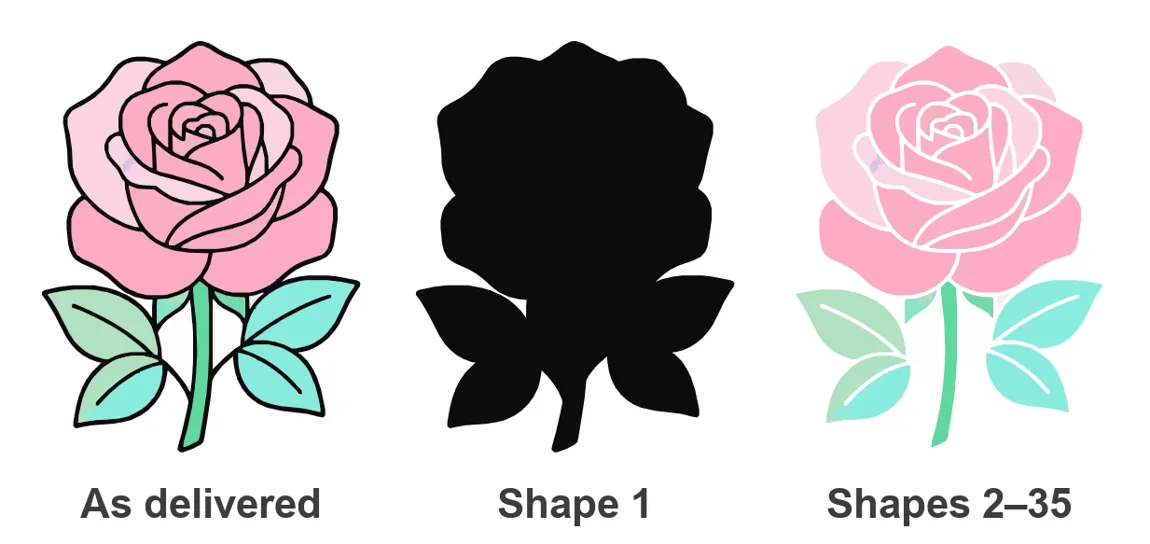
That changes how editing works. To recolor a petal, select its color shape. To change every outline at once, recolor shape 1.
Delete a petal and you won’t get a hole. You’ll get a black petal, because the silhouette’s still underneath.
There’s no stroke setting to thicken the lines, either, since they aren’t strokes.
If you only need the outer shape, for a sticker outline or a one-color cut, keep shape 1 and hide the rest.
| Job | File to use | Why |
|---|---|---|
| Put a flower beside text on a card or label | PNG | Transparent, and any program opens it |
| Recolor petals, leaves or the outlines | SVG | Each color is its own shape |
| Print wider than about 8 inches (20.3 cm) | SVG | The PNG runs short of pixels past that |
| Cut the outer shape | SVG, shape 1 | It’s the whole silhouette in one piece |
| Any of the three fairy sets | PNG | Those sets come without SVGs |
We haven’t opened these SVGs in every editor out there, so if one looks strange in yours, place the PNG instead. A name card doesn’t need editable petals.
How to use clipart on a page: a 5 × 3 inch rose name card
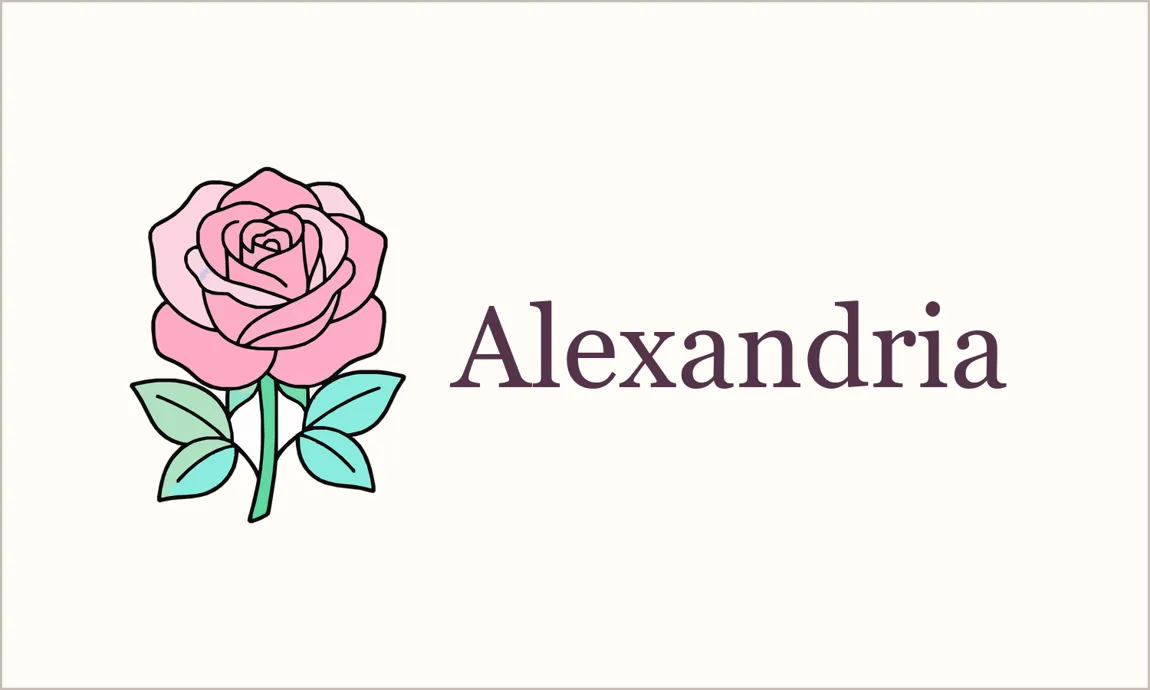
Here’s a layout we built with that rose: a place card 5 inches wide and 3 inches tall (12.7 × 7.6 cm), with the flower on the left and a name on the right.
- Set the page to 5 × 3 inches before you add anything.
- Place floral-01-rose.png from the PNG folder.
- Lock the proportions, then set its square to 2 inches (5.1 cm).
- Slide it left until the leaves sit just over half an inch (1.4 cm) from the edge.
- Type the name and set it in a dark color.
- Export the page and check that it still measures 5 × 3 inches.
Step 3 sets the size of the box, not the flower.
Size clipart by the art you can see, not the box
Every PNG in the set is a square canvas with clear, empty space around the drawing. The rose fills 1443 of its 2400 pixels across and 1859 of them down.
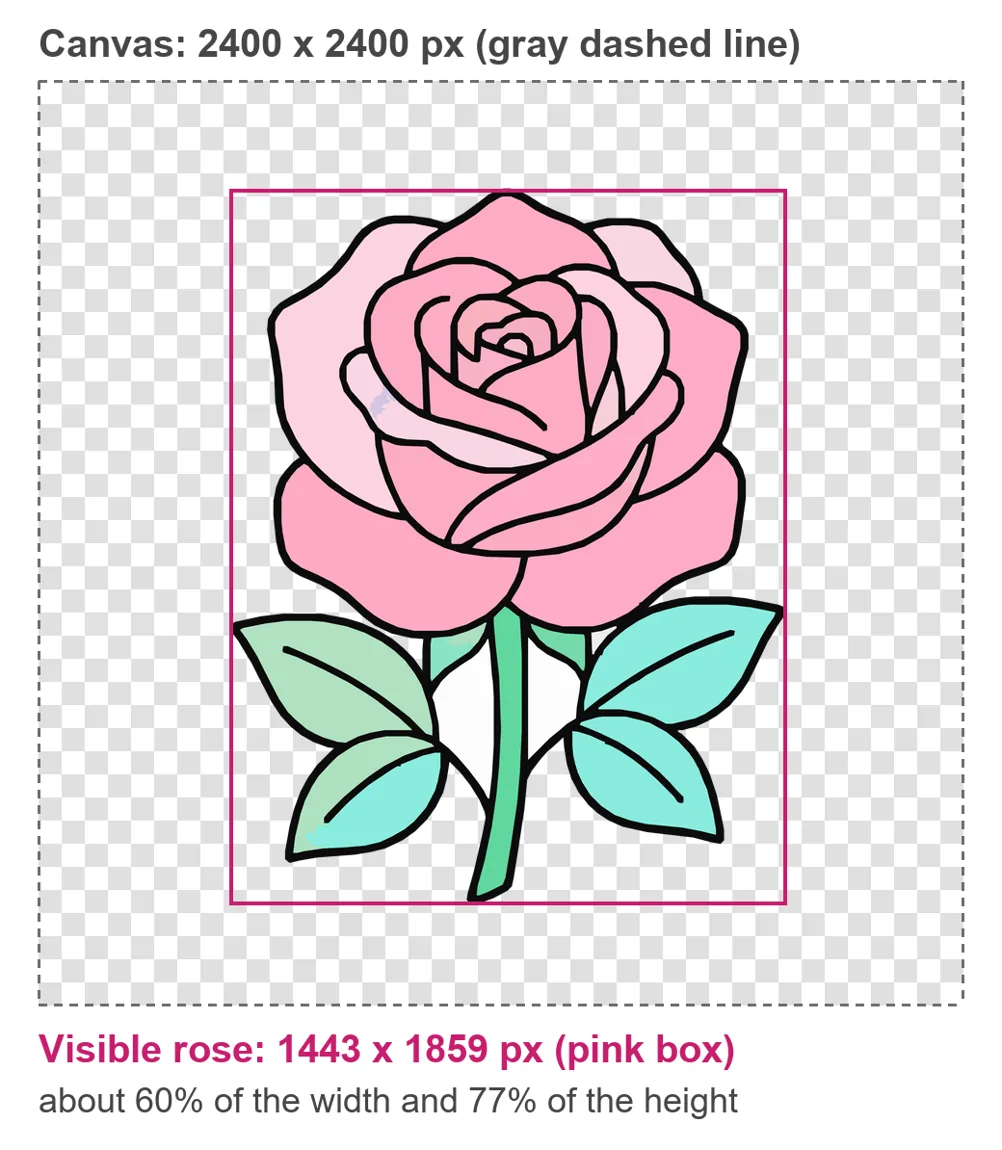
At 2 inches, that makes the rose 1.2 inches wide and about 1.55 inches tall (3.1 × 3.9 cm).
The drawing also starts 0.41 inches (1 cm) in from the left side of its box, so a box pushed against the margin still leaves a gap.
Other flowers sit very differently in the same square. The foxglove is tall and thin and fills only 31% of the width, while the water lily spreads to 87%.
Set both to 2 inches and the water lily comes out almost three times as wide.
So line things up by eye, using the leaf tips and the edge of the bloom.
If you want the box to hug the flower, crop it inside your layout program, where the crop can be undone, and keep the PNG as it came out of the ZIP.
Fitting a long name beside the clipart
With the rose in place, our card had 2.78 inches (7.1 cm) left for the name, after a 0.2-inch (5 mm) gap beside the leaves and a quarter inch (6 mm) at the right edge.
Alexandria, set in Georgia at 36 point, takes 2.42 inches (6.1 cm). It fits.
Bartholomew needs 2.98 inches (7.6 cm) at the same size. It runs off the card.
At 33 point it shrinks to 2.74 inches (7 cm) and fits.
Anastasia-Rose still won’t fit at 33 point and needs 29 point, or a second line.
That’s why the longest name on your list goes in first.
Settle the size on that card, then use it on every card so the set looks even.
Don’t squeeze the letters sideways to make a name fit; squeezed type looks thin and crowded beside a flower that kept its shape, so shrink the whole name or let it wrap.
Clipart print size: pixels divided by pixels per inch
The 2-inch rose on that card holds all 2400 pixels, which works out to 1200 pixels per inch. It’ll print crisp.
To find the largest clean print for any PNG, divide its width in pixels by 300, the resolution most printing guides aim for. That number is the canvas, so the drawing inside comes out smaller.
| Clipart set | PNG size | Width at 300 pixels per inch |
|---|---|---|
| Pastel Floral, Cute Animal Line Art, Chinese Zodiac | 2400 × 2400 px, no resolution saved | 8 in (20.3 cm) |
| Mushroom Fairy | 3000 × 3000 px, saved at 300 DPI | 10 in (25.4 cm) |
| Whimsical Fairy | 2000 × 2000 px, saved at 300 DPI | 6.7 in (16.9 cm) |
| Watercolor Tooth Fairy | 1800 × 1800 px, saved at 300 DPI | 6 in (15.2 cm) |
That “no resolution saved” note matters, because some programs assume 72 pixels per inch when a file carries no setting and open the rose 33 inches (84.7 cm) wide.
Nothing’s wrong with the file. Set it to 300, or type the width you want and let the program work out the rest.
Typing 300 into that box won’t add detail to a smaller image, though; it only changes how big the same pixels print.
The fairies open at their printed size in programs that read the setting.
The Watercolor Tooth Fairy Clipart is the smallest of the six at 6 inches (15.2 cm), enough for a tooth fairy letter or a 4 × 6 inch (10.2 × 15.2 cm) photo card.
The Cute Animal Line Art Clipart puts its pixels to a different use.
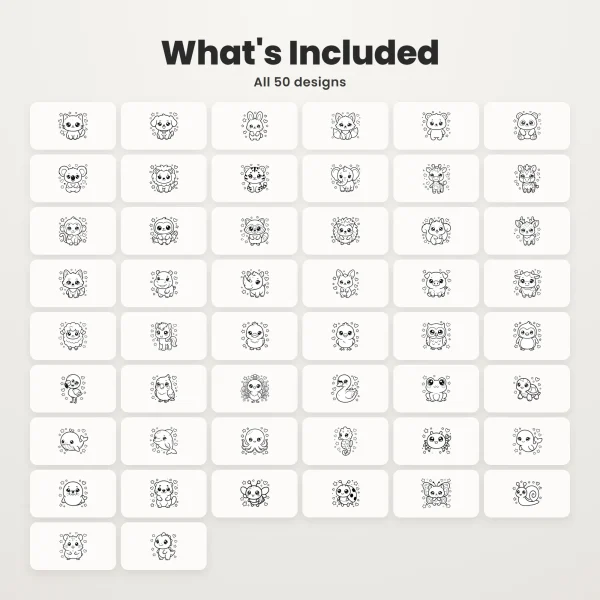
Each animal is a black outline filled with white, so printed on plain paper it’s a coloring page, and two or three to a US Letter page keeps the outlines thick enough for small hands.
For the printer itself, set it up as you would for any coloring page: plain paper, Standard or High quality and single-sided, as printing coloring pages at home recommends.
Before you print clipart: dark paper and one test copy
Getting the size right still leaves two things that go wrong on paper: the background and the printer.
Transparent edges, white fills and dark paper
In an image editor, a gray-and-white checkerboard behind a drawing means transparent, and on colored paper the color should show right up to the outline.
Look closely at the rose, though. The two pockets between the stem and the leaves are filled white, not left clear.
That white covers about 4% of the rose.
Across the floral set, 30 of the 46 PNGs carry some solid white, from small pockets like these to the white petals of the daisy and the azalea.
On cream card stock you’d hardly notice. On navy, the pockets show as white patches and the black outline sinks into the dark paper.
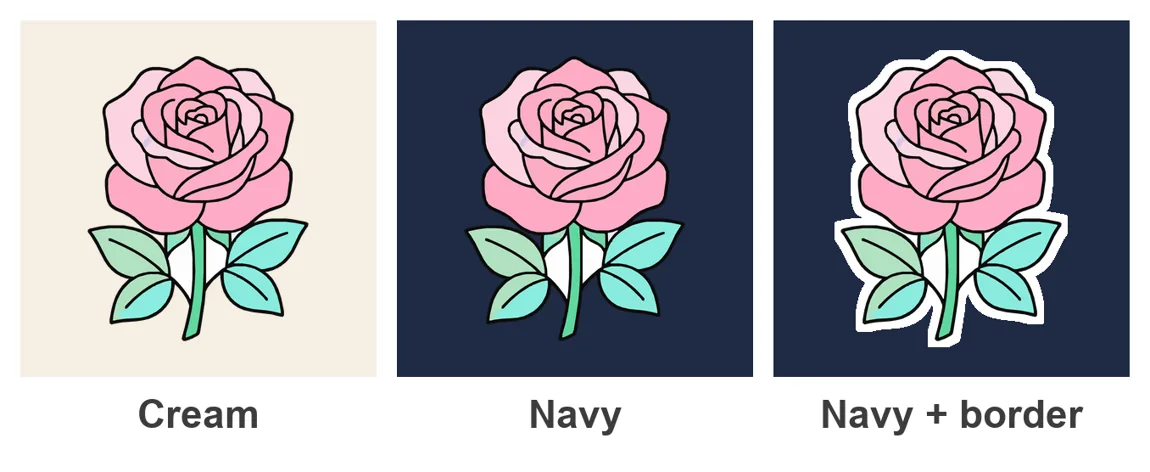
For dark paper, give the whole design a white border, the way a die-cut sticker has one. Look for a setting called outline or offset; a border like that also makes the white pockets look intentional.
Keep the name off the petals, too. Pale pink type on a pink flower is hard to read from across a table, so our card sets the name in dark plum on cream.
Export, reopen and print one copy at actual size
Save the layout file, then export the page as a PDF or PNG and open that export. Check the size it reports: our card exported at 1500 by 900 pixels, which is 5 × 3 inches (12.7 × 7.6 cm) at 300 pixels per inch.
Print one copy with the print dialog set to Actual size or 100%, not Fit, since Fit would shrink the card before you ever measure it.
Then grab a ruler. The card should be 5 inches (12.7 cm) wide and the rose 1.2 inches (3.1 cm) across.
If a print shop is making them, say “100%, no scaling” at the counter, the line our copy shop guide puts at the top of its list.
Only then make copies. Turned upright, four 3 × 5 inch cards fit on one US Letter or A4 sheet.
The same test pays off for cut-outs: lay several flowers on one page for card fronts or a collage, print one sheet, and measure before you cut a stack. Our collage ideas start from pieces like these.
Keep the export and the layout file in the same folder, so the next batch starts from the version you actually printed.
Clipart license: what Personal and Commercial let you do
Once the test card prints right, the next question is usually where the cards can go.
Some clipart sets in our shop let you pick Personal or Commercial on the product page, and others are sold with the Personal License only, so check which licenses a product page offers before you buy.
Either way, Doodlora Studio keeps the copyright, and what you’re buying is the right to use the designs.
| What you want to do | Personal | Commercial |
|---|---|---|
| Use the designs for yourself and your household | Yes | Yes |
| Use them with your own students, or inside one school, care home, library or office | Yes | Yes |
| Sell stickers, T-shirts, mugs, cards, prints or crafts made with them | No | Yes, with no limit on how many |
| Sell, share or give away the files, as they are or changed | No | No |
| Use any part of a design in a logo or brand identity | No | No |
| Use the files to train an AI model | No | No |
Applied to the name card, printing a set for a family dinner or your own classroom falls under Personal. Selling printed place cards at a craft fair needs Commercial.
Selling the card as a printable file is out under both, because the Commercial License lists templates and digital download listings among the things you can’t sell.
Two more details catch people. Each business that sells products needs its own Commercial License, and downloads that come with a membership carry the Personal License.
The full wording is on our license page, with the same terms as the PDF in your ZIP. The Personal License itself says what to do if you want to sell what you make: buy the Commercial License where the product offers it.
If your plan isn’t on either list, ask us before you print a whole batch.
Printables from this article
Related articles
Clipart & SVG Cut Files
What Is Clipart? Meaning, Types and File Formats
What clipart is and where the name comes from, how line art, outlines, silhouettes and stencils differ, which files print or cut, and what a clipart license allows.
Clipart & SVG Cut Files
Lunar New Year Activities for Kids: Chinese New Year Crafts
Fifteen Lunar New Year activities for kids, from red envelopes and window paper-cuts to a zodiac animal race and dumpling folding, with ages, group sizes, supplies and the step that usually goes wrong.